
About Guitar Strum
Guitar Strum is an acoustic rhythm guitar library for Kontakt. You select a chord and strum it, just like on a real guitar: real recorded acoustic chords and natural strumming, with no note-by-note programming.
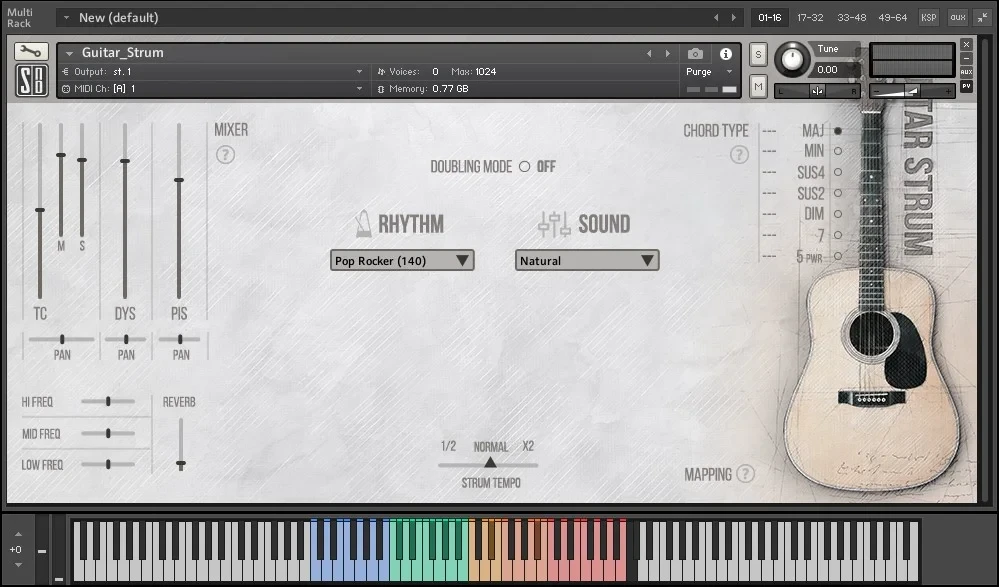
Built-in rhythm patterns, a mixer for the microphones we recorded with, sound presets and a doubling mode for a wide stereo image are all in one window.
Installation and system requirements
Guitar Strum needs the full version of Kontakt 5.8.0 or later and does not work in the free Kontakt Player.
System requirements
| Product type | Sample library for Kontakt |
|---|---|
| Kontakt | Full version of Kontakt 5.8.0 or later. Not compatible with the free Kontakt Player. |
| Download size | 9.8 GB |
| Samples | 8,399 samples, 44.1 kHz / 24-bit stereo, NCW compression |
| CPU | Intel Core i3 or equivalent minimum; Intel Core i5 or equivalent recommended for real-time playing |
| Memory | 4 GB RAM or more recommended |
| Storage | SSD recommended |
Install the library
- Download the .zip archive from My Account → My Downloads on evainstruments.com.
- Unzip it. Inside is the library folder with all the files it needs. Move this folder to any convenient place on your hard disk, preferably an SSD.
- Open Kontakt and drag the instrument file (.nki) from the library folder into the Kontakt rack. You can also open it from the Kontakt file menu or browser.
Guitar Strum is not a Kontakt Player library, so it does not need activation in Native Access and does not appear in the Kontakt Libraries list. Open it from its folder as described above.
Quick Start
Everything works the same way as on a real guitar:
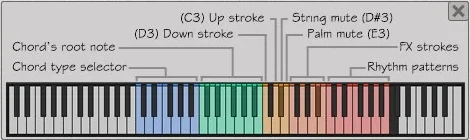
- Select the chord (C, D, E, F…) with the green keys on the Kontakt keyboard (C2–B2).
- Select the chord type (maj, min, sus, dim…) with the blue keys (C1–B1).
- Strum (up, down, string mute, palm mute) with the orange keys (C3–E3).
There is no need to select the chord again before each stroke: it stays selected until you change it.
Chords and chord types switch independently. To change Cmin to Gmin, or Fmaj to Fsus4, press only the chord keyswitch or only the chord type keyswitch.
The keyswitch layout is shown below. You can also open it in the instrument: click the question mark next to MAPPING in the lower-right corner of the interface.
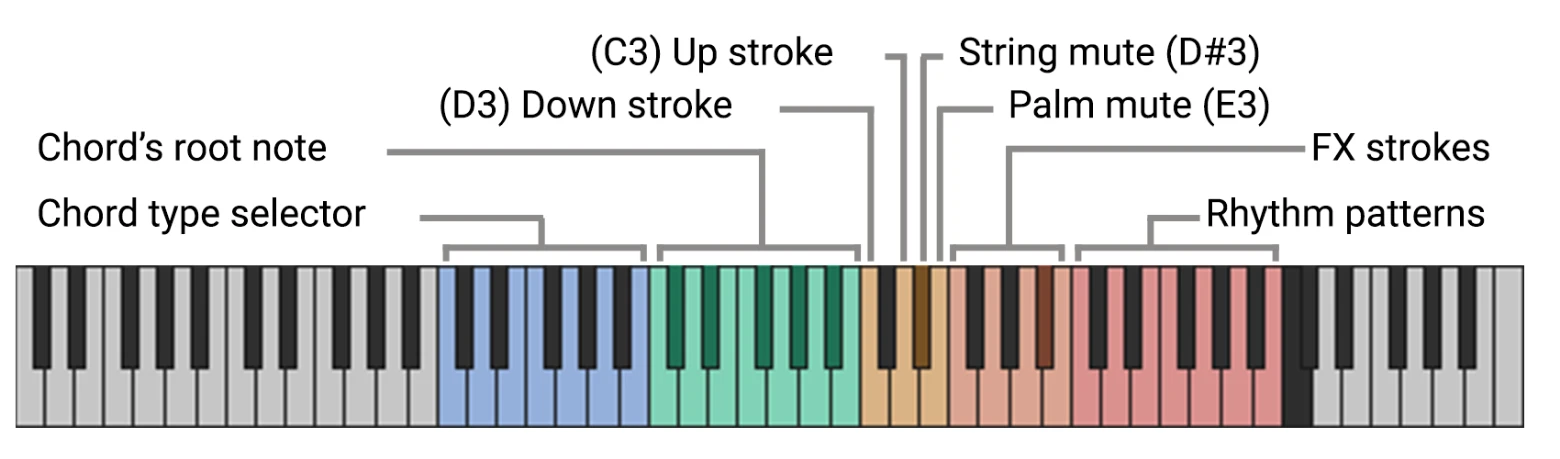
| Keys | Color | Function |
|---|---|---|
| C1–B1 | Blue | Chord type |
| C2–B2 | Green | Chord root note |
| C3 | Orange | Up stroke |
| D3 | Orange | Down stroke |
| D#3 | Orange | String mute |
| E3 | Orange | Palm mute |
| F3–B3 | Orange | FX strokes |
| C4–B4 | Red | Rhythm patterns (see Strum patterns) |
| C5 | Black | Stop all sound |
After you strum, the chord rings until the next stroke or until you mute the strings with the corresponding keyswitch. To stop any sound immediately, press C5 (marked black on the Kontakt keyboard).
Chord types
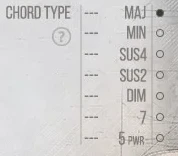
You can also switch the chord type by clicking its name in the CHORD TYPE selector. The selector shows the current chord type, whether you selected it with a mouse click or a keyswitch.
| Key | Chord type |
|---|---|
| C1 | MAJ: major |
| D1 | MIN: minor |
| E1 | SUS4: suspended fourth |
| F1 | SUS2: suspended second |
| G1 | DIM: diminished |
| A1 | 7: dominant seventh |
| B1 | 5: power chord |
Strum patterns
Besides single strokes for playing the part yourself, the library has built-in rhythm patterns on the red keys of the Kontakt keyboard (C4–B4).
The rhythm patterns come in 6 presets, one for each strumming style:
- Pop Rocker (140)
- Country Player (110)
- Stadium Ballad (125)
- Rock Star (120)
- Indie Song (130)
- Folk Strum (150)
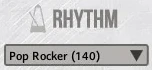
Select a preset in the RHYTHM menu in the center of the interface.
The number after the preset name is the tempo at which we think its patterns sound best. The tempo of the patterns follows the tempo of your DAW automatically.
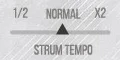
To play the patterns faster or slower than the DAW tempo, use the STRUM TEMPO slider (1/2, NORMAL, X2). It affects only the rhythm patterns.
Mixer
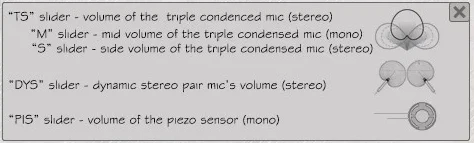
We recorded the guitar with a stereo pair of dynamic microphones, a triple condensed microphone and a piezo pickup mounted on the top of the guitar next to the bridge.
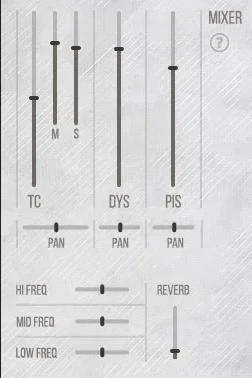
The library mixer has 4 single channels and 1 group channel.
| Channel | What it controls |
|---|---|
| M | Volume of the mid channel of the triple condensed microphone (mono) |
| S | Volume of the side channel of the triple condensed microphone (stereo) |
| DYS | Volume of the stereo pair of dynamic microphones |
| PIS | Volume of the piezo pickup (mono) |
| TC (group) | Total volume of the triple condensed microphone, M and S together. The built-in help window calls it TS. |
The TC, DYS and PIS channels also have a PAN control.
The three-band equalizer (HI FREQ, MID FREQ, LOW FREQ) applies to the whole instrument, and so does the REVERB slider.
Doubling mode
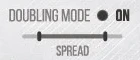
To turn on doubling mode, click the DOUBLING MODE switch in the center of the interface. Two different takes of each stroke then play from the left and right channels, which gives a wide stereo image.
When doubling mode is on, a SPREAD slider appears under the switch. It sets the stereo width between the two takes.
Sound presets
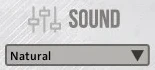
The library has ready-made mixer and equalizer settings. Select them in the SOUND menu.
There are 5 presets:
- Natural: the natural sound of the guitar as we recorded it. This is the main preset, with the mixer and equalizer in their default positions.
- Bright: a brighter and sharper sound.
- Soft: a soft and warm sound, with less treble and more reverb.
- Body: a closer sound, with more of the guitar body.
- Wide: a wide and bright sound with doubling mode on. Two different takes play from the left and right channels.
Help windows
The interface has three help windows with quick information about the main controls: MIXER, CHORD TYPE and MAPPING.
To open a help window, click the question mark next to the corresponding section of the interface. To close it, click the X in the corner of the window or click the question mark again.
The CHORD TYPE help window lists the chord type keyswitches from the Chord types table.
Need help? Contact EVA support through the Support page or by email at support@evainstruments.com.